
AigentFlow Desktop is in pre-release. This documentation reflects the current build and will change before general availability.
Working with agents
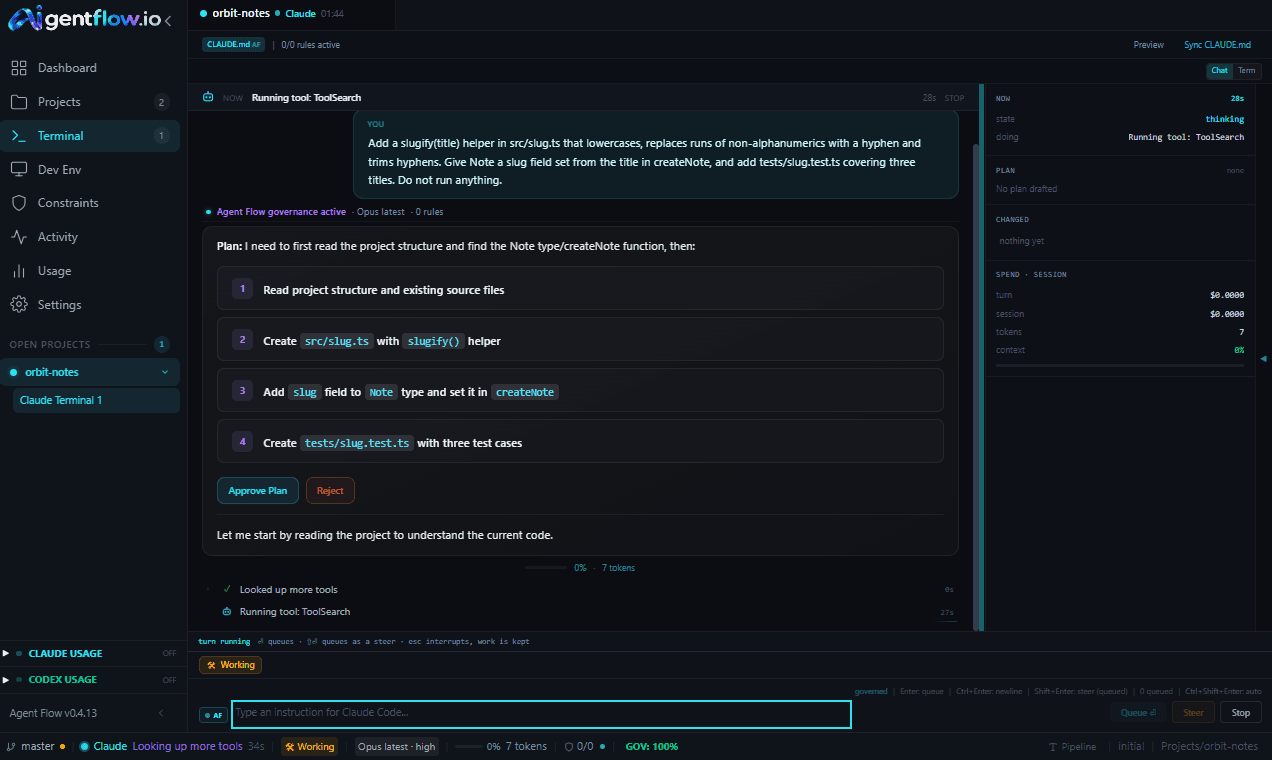
The session screen
Where the work happens. You give an instruction, the agent works, and every step arrives as a row you can read.
Each session is a tab. Tabs stay alive when you navigate away, so a running turn is never lost because you looked at something else. A tab shows its project, which agent is running it, and a pulsing dot while the session is live.
Sending an instruction
Type into the bar at the bottom and press Enter. The badge to the left of the box reads AF, which means AigentFlow is governing what you send. When the agent has asked you something it reads REPLY instead, and your answer passes through untouched.
| Key | Idle | While a turn is running |
|---|---|---|
Enter | Send | Queue for when the turn ends |
Shift+Enter | Explain first | Queue as a steer |
Ctrl+Enter | New line | New line |
Escape | Clear the box | Interrupt the turn, keeping the work already done |
↑ ↓ | Browse your instruction history | Same |
1–9 | Answer a standing question, when the box is empty | Same |
You can drag or paste images into the box, up to about ten megabytes in total.
Steering a turn that is already running
A steer is queued, not delivered mid-turn. Neither agent accepts an interjection while it is thinking, so the app is honest about it: your correction waits and goes out the moment the turn ends. Only one instruction may wait at a time, and a second is refused rather than quietly merged, so you always know exactly what is about to be sent.
To stop the agent instead, press Escape. The work already done is kept and the session keeps its context, so you can redirect rather than start over.
When the agent asks you something
A question is pinned outside the scrolling transcript so it cannot scroll away while it is unanswered, and the app distinguishes three kinds.
- A question from the agent is amber and says it blocks the run. Press the number of the option you want.
- A derived question is cyan and dashed, marked as read from the message. The agent did not offer these; AigentFlow read them out of what it wrote. Choosing one fills your input, it never sends by itself.
- A command option list belongs to a command you typed, and choosing one re-runs it.
There is always an escape hatch to answer in your own words instead.
Reading what happened
The transcript is a ledger, not a wall of text. Each instruction, tool call, file write and plan is one quiet sentence with the time it took, and any row expands to the real call underneath. A sticky heading at the top shows what is happening now, how long it has been going and a link to stop it.
When a turn ends you get a summary card: the files touched, lines added and removed, what it cost and how full the context window now is. Review all opens the first changed file.
A turn that is blocked waiting on you gets no completion card. The app will not show you a summary of something that has not finished.
Layouts
The same session can be arranged four ways, chosen in Settings. This whole section is behind the developer tools: in the default view the session is pinned to Ledger & Rail, panels cannot be moved, and the governance pane is hidden.
| Layout | What it puts first |
|---|---|
| Ledger & Rail | The sentence stays the hero. A permanent rail answers now, plan, changed, spend and team |
| Flight Deck | The plan is the primary object: a phase stepper, a live task board and a side panel |
| Workbench | An editor with an agent in it. Ledger on the left, code in the centre, review queue on the right |
| Bridge | One lane per agent, always live. The selected lane expands into its own ledger and editor |
Panels can be moved between regions or collapsed to the rail from the handle on each one. The transcript and the instruction bar are required and cannot be collapsed away.
The status bar
Along the bottom: the git branch and whether the tree is dirty, which agent is active and what it is doing, the session mode, the model, how full the context is, the number of turns, the cost so far, the active rule count, a compliance score and any violations.
Cost is shown for Claude sessions. The Codex command-line tool reports no cost, so there is no number to show, and the app leaves it blank rather than inventing one.